For security reasons, CancerIQ self-assessment links expire 48 hours after they are sent. If you attempt to access your assessment after the link has expired, the system will automatically generate and send a new secure link to your email.
This guide explains what happens when a link expires and how to access your assessment using the newly generated link.
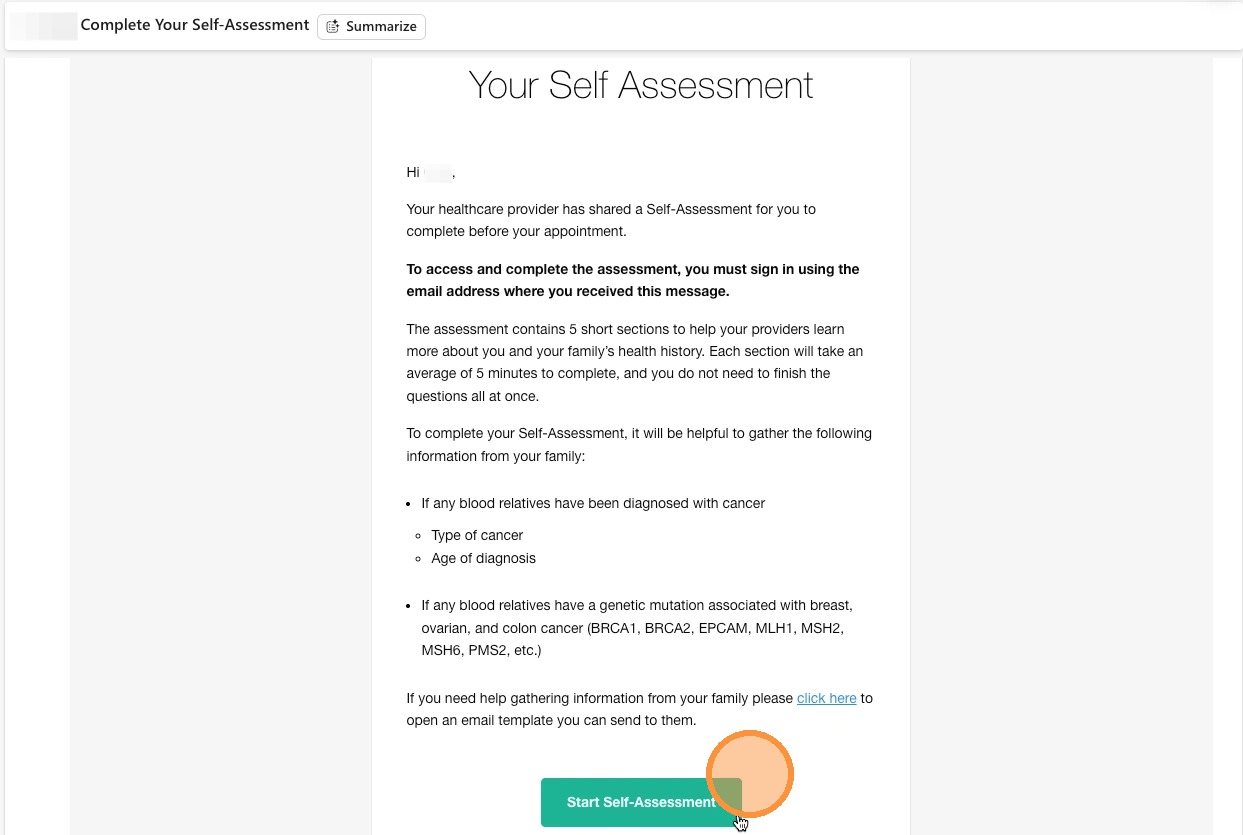
1. Open Your Self-Assessment Email
- Navigate to your email inbox and open the CancerIQ Self-Assessment email you originally received.
- Click Start Assessment to begin.
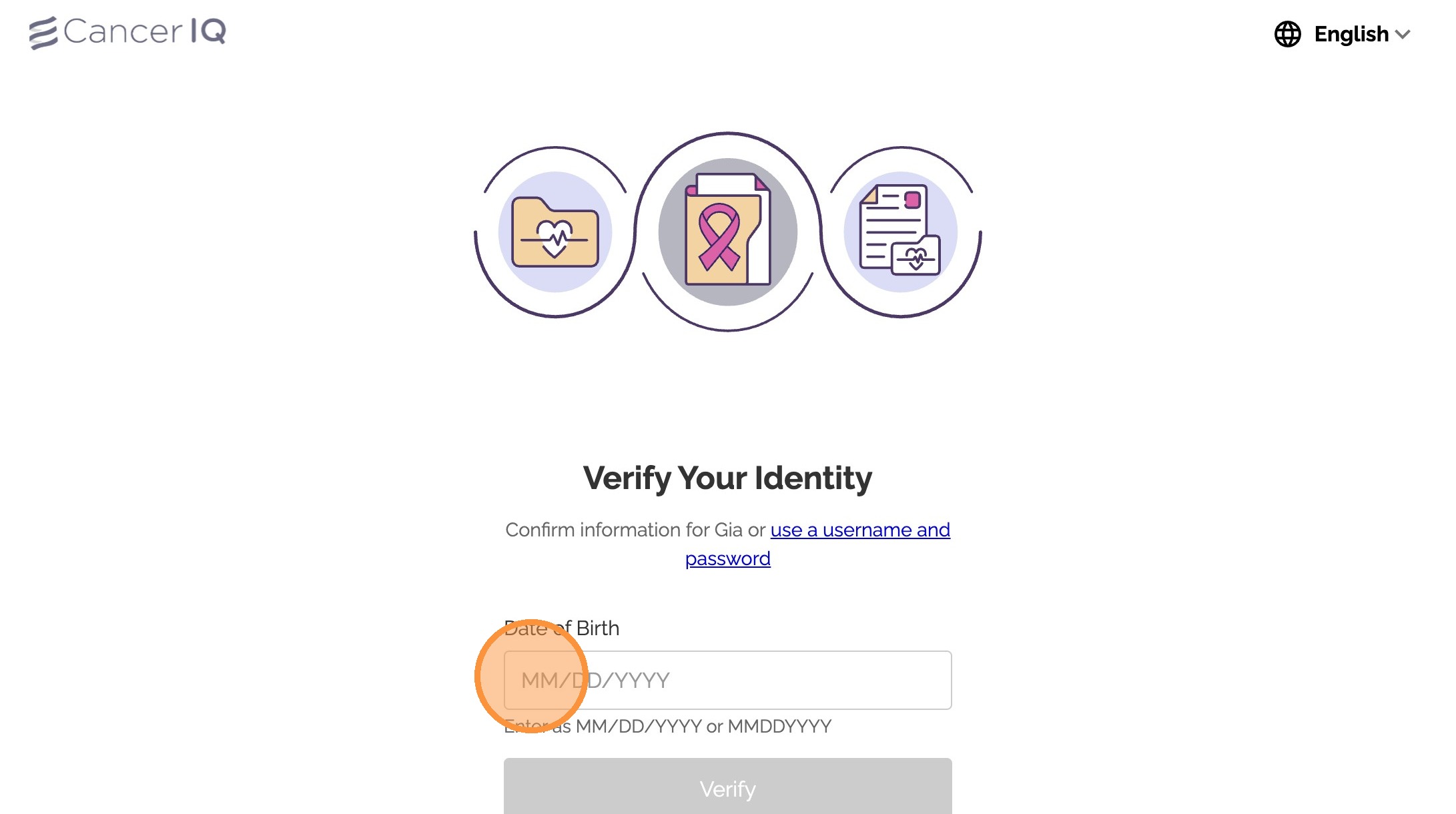
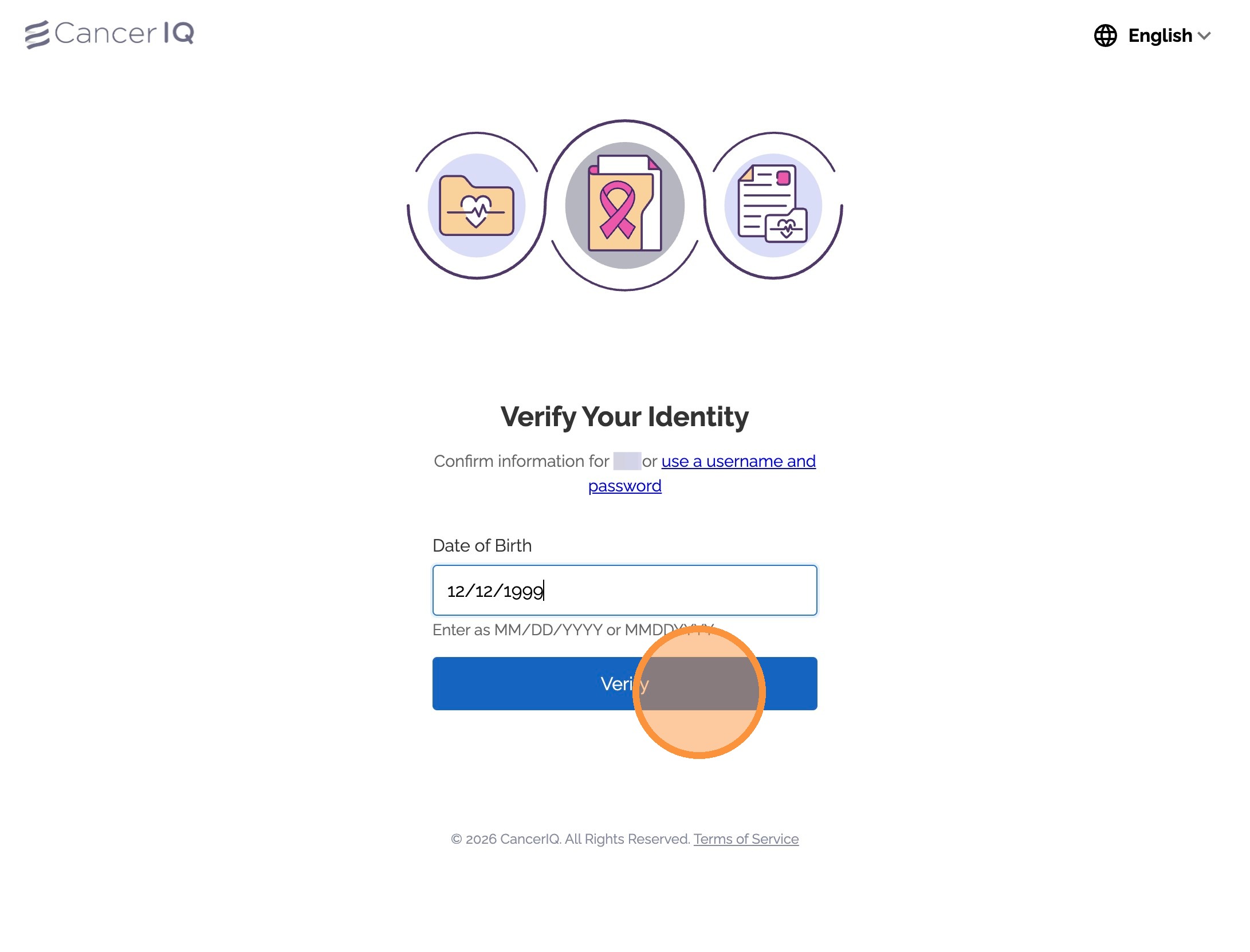
2. Verify Your Date of Birth
- You will be prompted to enter your Date of Birth to verify your identity.
- Enter your date of birth and click Verify.
3. Expired Link Message Appears
- If the original link has expired, you will see the following message:
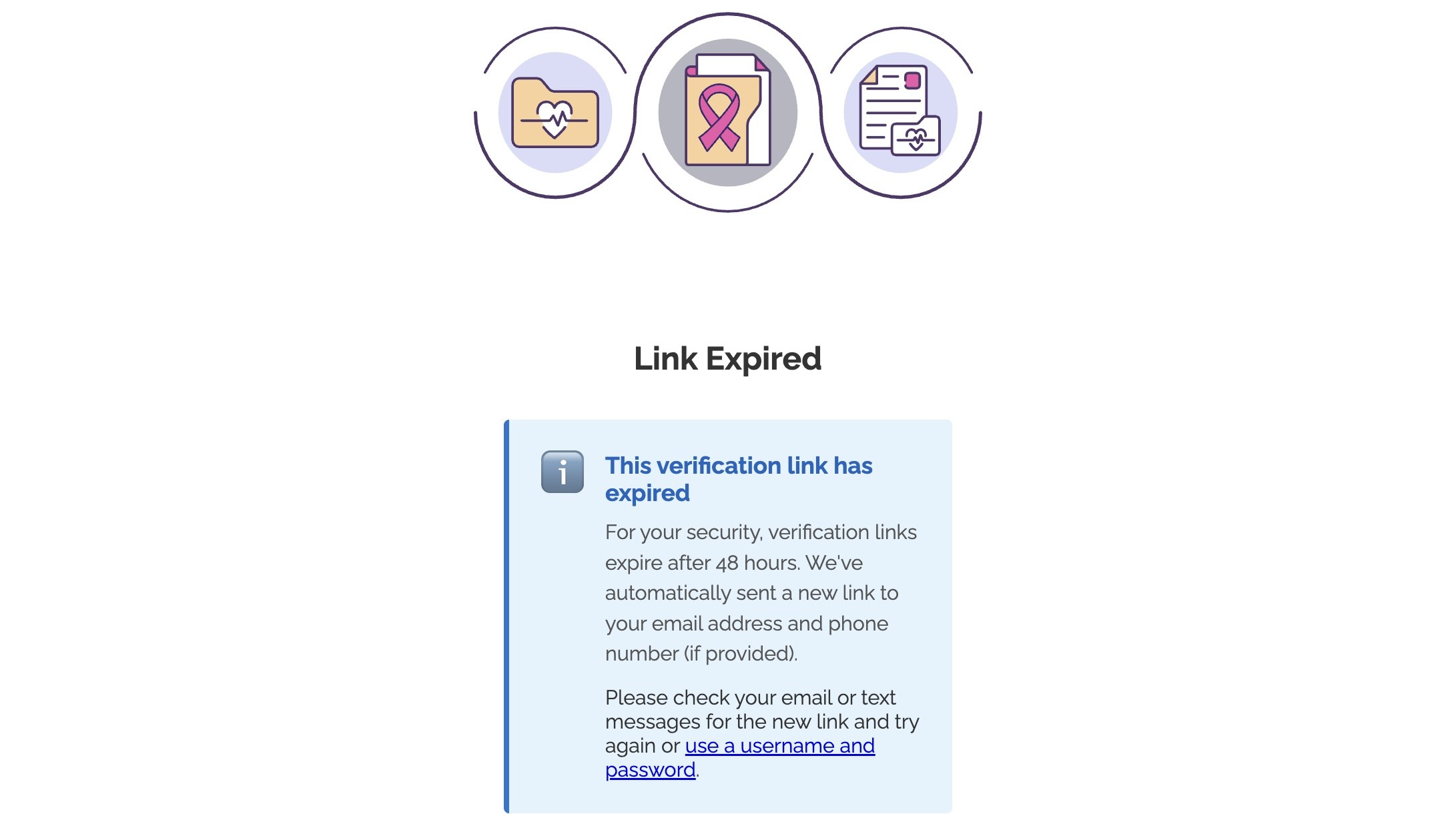
Once this message appears, CancerIQ will automatically send you a new secure access link.
4. Return to Your Email Inbox
- Go back to your email inbox.
- Look for the newest email from CancerIQ, which will contain a newly generated assessment link.
5. Open the New Email and Click Continue
- Open the most recent CancerIQ email. The email will explain that your previous link expired and that a new secure link has been generated.
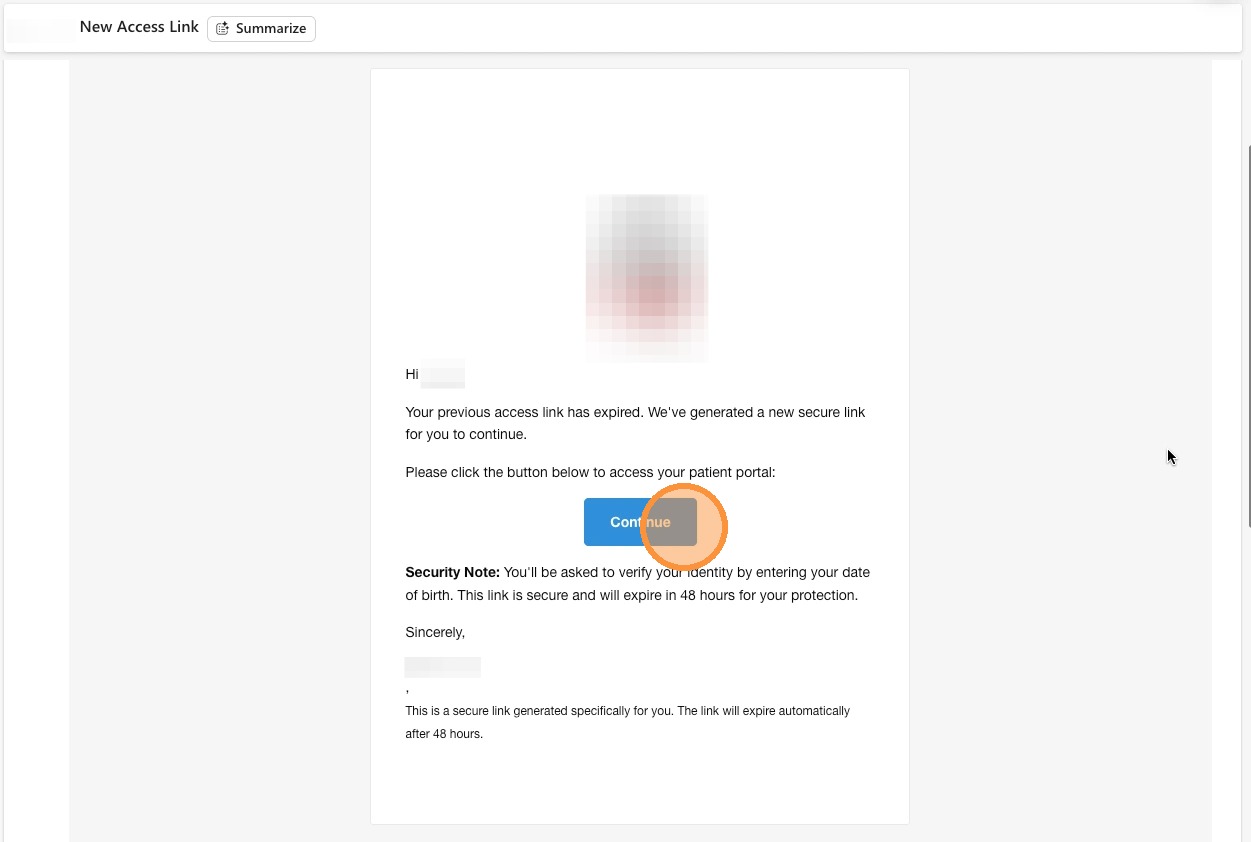
Click Continue to proceed.
6. Verify Your Date of Birth Again
- You will be prompted to enter your Date of Birth again.
- Enter your date of birth and click Verify to access the assessment.
7. Complete Your Self-Assessment
- After verification, you will be taken directly to the CancerIQ Self-Assessment, where you can begin or continue completing your information.
Tips
• Always use the most recent email link sent by CancerIQ.
• If multiple links were generated, older links may no longer work.
• If you cannot find the new email, check your spam or junk folder.
Need Help?
If you have questions or need assistance, our support team is here for you.
Contact Support →